

Patient Payments, Powered by Stripe
Follow the steps outlined below to register with Stripe and connect your Service Center account. Finalizing your Stripe enrollment will enable your office to commence accepting credit card payments in just a few minutes directly from Service Center.
Setting Up Patient Payments in 5 Easy Steps
* To complete the Service Center, Stripe connection you will need Admin Access to your Service Center Account.
Open Account Management
STEP 1
You can easily add Patient Payments to your office's tech stack through Account Management in your Service Center application.
- Open and log into Service Center.
- Open the Service Center navigation bar and select Account Management from the left toolbar.
.png "Service Center Account Management")
Adding Patient Payments
Step 2
Under the Discover New Products area of the screen, you will find a card labeled Patient Payments.
- Click on the Patient Payments card which will open a pop-up about Patient Payments.
- Select the Get Patient Payments button. This will open the Stripe Registration screen.
.png?width=1152&height=600&name=Untitled%20design%20(50).png "Patient Payments in Account Management")
.png?width=1655&height=1515&name=Untitled%20design%20(51).png "Get Patient Payments")
Create a Free Stripe Account
STEP 3
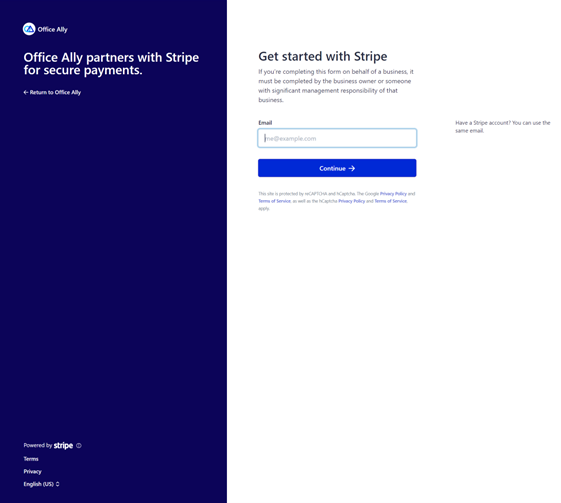
Follow the instructions to enroll and connect your Service Center account with Stripe.
To complete the enrollment process you will need the following financial documentation:
- Business registration/incorporation documents
- Tax ID Number
- History of financial statements from the past year
- Bank account information (Name, address, account & routing number)
- Company website URL
If registering as an individual instead of a business, you will need:
- Date of Birth
- Phone Number
- Last four digits of you Social Security Number
- Bank account information (Name, address, account & routing number)
- Company website URL
Click to see answers to some or our most frequently asked questions about Patient Payments.
Taking Payments
STEP 4
Patient Payments gives your staff two convenient ways to capture a patient's card information — physical terminal, virtual terminal or a text-to-pay link.
Virtual Terminal Payment Processing
Step 4A
Virtual terminals are a great way to capture a patient payment when talking to your patient over the phone or while they are in your office.
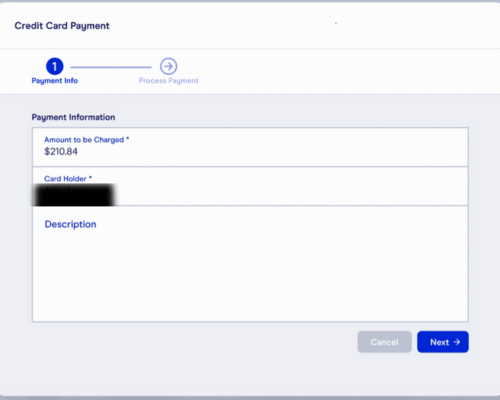
Start by clicking the Process Payment button, you will then be taken to the virtual terminal. On the first screen you will put in:
Required Payment Information:
- Amount to be charged
- Card Holder’s Name
Optional Payment Information:
- Description
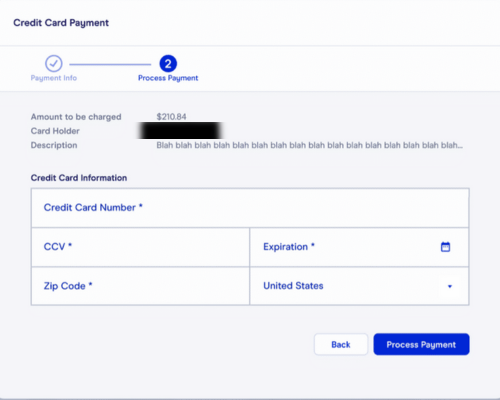
On the second payment screen you will manually type in the patient's card information.
- Card Number
- CCV
- Expiration Date
- ZIP Code associated with the card
- Country
Text-to-Pay Payment Processing
Step 4B
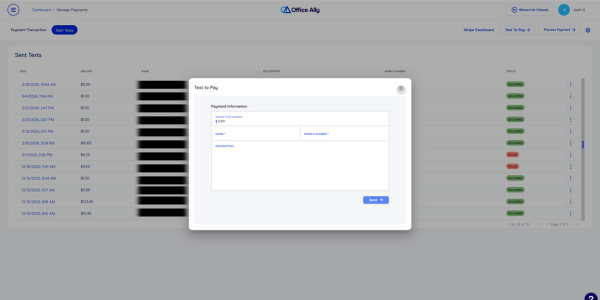
Text-to-pay makes it simple for you patients to make a payment wherever they are. You will generate a payment link and text it to the patient’s mobile phone all within Service Center.
To generate and send a text-to-pay link:
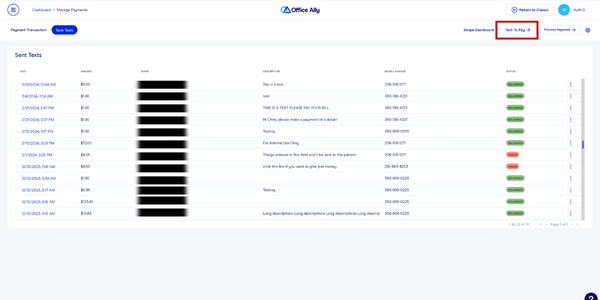
- Select Text-to-Pay from the Manage Payments Screen.
- Enter the following information:
- Amount to Charge
- Patient/Guarantor Name
- The mobile phone number you would like the text sent to
- Description (Optional: This information will not be sent to the patient)
- Click Send
Your patient can click the link and make a secure payment directly from their phone. Once they complete the payment process, the patient and your office will receive a notification of payment.
Managing Payments
Step 5
The Manage Payment Screen will act as your hub for managing all of your credit/debit card transactions. From this screen, you can:
- Access your Stripe Connect Dashboard by selecting Stripe Dashboard where you will be able to see advanced reporting, manage your voids and disputes, and control payouts.
- Process new payments by selecting Text To Pay to send a payment link to a patient or if the patient is in your office you can select Process Payment to pull up the payment screen.
- Filter and search payment information by clicking on column headers to sort and filter.
- Use the action button to process refunds and view receipts.


Patient Payments Registration FAQ
Should I register as a company or individual?
This will depend on the account you are wanting Stripe to deposit payments into. If you want Stripe to deposit into a bank account registered to the company, register as a company. If Stripe will be depositing into a personal account, register as an individual.
Why does Stripe need this information?
Stripe depends on this information to protect your identity and assets. Much like banks do when handling account and loan procedures, Stripe utilizes this data to verify the identity of the account holder and ensure access to their bank accounts, thereby enabling proper payment deposits.
Is my personal/business data protected?
Stripe has been evaluated by a PCI-certified auditor and received a PCI Service Provider Level 1 certification. This is the most stringent level of certification in the payments industry. You can learn more about How Stripe Handles Security, here.
Is my practice able to use Stripe payment processing?
Stripe has some restrictions on what types of companies can use their services. If you have questions about whether your practice will be eligible to use Stripe payments service, please review Stripe's list of Prohibited and Restricted Business.
Return to Registration Instructions